Gmail App Password for SMTP: Send Form Emails from Gmail
Create a Google App Password and connect Gmail SMTP to Quantalog, so form alerts and confirmations go out from your own address. Five-minute setup.

Quantalog
9 min read
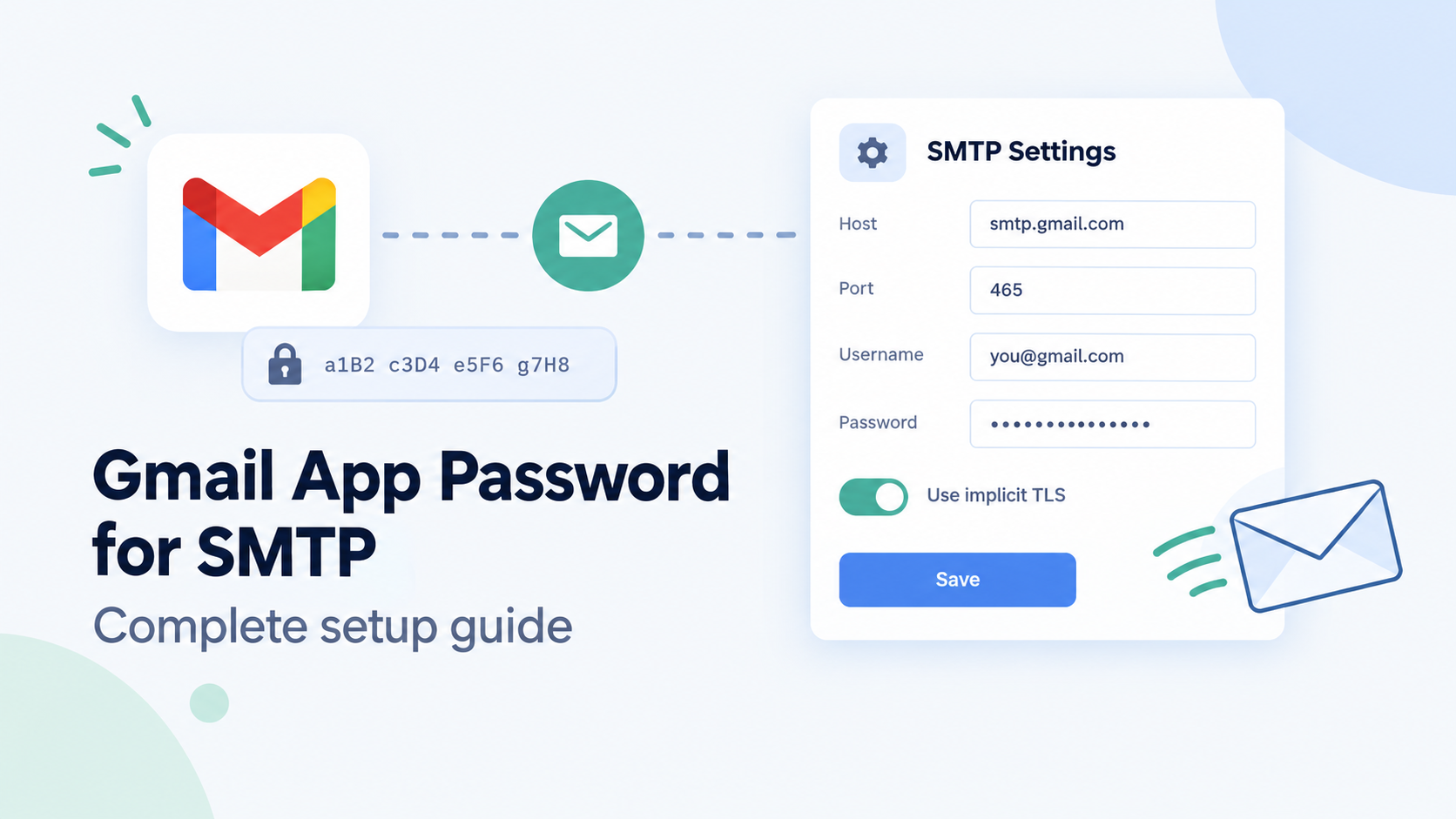
Most apps need to send a handful of emails: sign-up codes, password resets, receipts and alerts. You don't need a paid email provider to start. A Gmail account and its SMTP server will do the job.
Gmail won't accept your normal password from code, though. You need a Google App Password. This guide walks through creating one, storing it safely in environment variables, sending from Node.js or Python, and fixing the errors you're most likely to hit.
Gmail SMTP settings at a glance
Use these values in any SMTP client or library
Setting | Value |
|---|---|
Server |
|
Port |
|
Username | Your full Gmail address |
Password | A 16-character App Password (not your Gmail password) |
Authentication | Required |
Before you start
- A Gmail account for sending. Use a dedicated one, such as
noreply.yourapp@gmail.com. It keeps app mail out of your personal inbox and limits the damage if the password ever leaks. - Access to that account's security settings, so you can turn on 2-Step Verification.
- Node.js 20.6 or later, or Python 3.8 or later, depending on which example you follow.
Step 1: Turn on 2-Step Verification
App Passwords only exist on accounts with 2-Step Verification. If it's already on, skip to step 2.
- Sign in to the sending account and open myaccount.google.com/security.
- Under How you sign in to Google, select 2-Step Verification.
- Follow the prompts to add a phone number or another second step, then turn it on.
Step 2: Create an App Password
- Go to myaccount.google.com/apppasswords. Google may ask you to sign in again.
- In App name, enter something you'll recognise later, such as
my-app production. - Select Create.
- Copy the 16-character password from the dialog. Google displays it as four groups of four letters.
- Select Done.
Important: Google shows the password only once. Paste it into your environment variables straight away. If you lose it, delete it and create a new one.
Tip: Create a separate App Password for each app and each environment (local, staging, production). You can then revoke one without breaking the others.
Step 3: Store it in environment variables
Keep credentials out of your source code. Create a .env file in the project root for local development:
.env
SMTP_HOST="smtp.gmail.com"
SMTP_PORT="465"
SMTP_USER="noreply.yourapp@gmail.com"
SMTP_PASS="abcdefghijklmnop"
SMTP_FROM="noreply.yourapp@gmail.com"
SMTP_FROM_NAME="Your App"
Variable | Purpose |
|---|---|
SMTP_HOST | Gmail's SMTP server |
SMTP_PORT |
|
SMTP_USER | The Gmail address you sign in with |
SMTP_PASS | The App Password, with the spaces removed |
SMTP_FROM | The address recipients see; keep it the same as |
SMTP_FROM_NAME | The sender name recipients see, such as your product name |
Then make sure the file never reaches your repository:
.gitignore
.env
.env.*
!.env.example
Commit a .env.example with the same keys and empty secrets, so teammates know what to set:
.env.example
SMTP_HOST="smtp.gmail.com"
SMTP_PORT="465"
SMTP_USER=""
SMTP_PASS=""
SMTP_FROM=""
SMTP_FROM_NAME=""
Step 4: Send email from Node.js
Nodemailer is the standard SMTP library for Node.js. Install it:
npm install nodemailerCreate one shared transporter for the whole app. Tying secure to the port means the two can never disagree, which is the most common cause of connection errors.
mailer.mjs
import nodemailer from "nodemailer";

const port = Number(process.env.SMTP_PORT ?? 465);

export const transporter = nodemailer.createTransport({
  host: process.env.SMTP_HOST ?? "smtp.gmail.com",
  port,
  secure: port === 465,
  auth: {
    user: process.env.SMTP_USER,
    pass: process.env.SMTP_PASS,
  },
});

export function sendMail({ to, subject, text, html }) {
  return transporter.sendMail({
    from: `"${process.env.SMTP_FROM_NAME}" <${process.env.SMTP_FROM}>`,
    to,
    subject,
    text,
    html,
  });
}
Now test it. transporter.verify() logs in without sending anything, so a wrong password fails here with a clear error:
send-test.mjs
import { transporter, sendMail } from "./mailer.mjs";

await transporter.verify();
console.log("SMTP login OK");

const info = await sendMail({
  to: "you@example.com",
  subject: "SMTP test",
  text: "If you can read this, Gmail SMTP is working.",
  html: "<p>If you can read this, <strong>Gmail SMTP is working</strong>.</p>",
});

console.log("Sent:", info.messageId);
Run it with Node's built-in .env loader (Node.js 20.6 and later):
node --env-file=.env send-test.mjsYou should see SMTP login OK, then a message ID, and the email should arrive within a few seconds. On older Node versions, install dotenv and add import "dotenv/config"; as the first line of send-test.mjs.
Using port 587?: Set
SMTP_PORT="587". The code above switchessecuretofalseautomatically, and Nodemailer upgrades the connection with STARTTLS.
Step 5: Send email from Python
Python's standard library includes smtplib. The only extra package is python-dotenv, to read the .env file:
pip install python-dotenvmailer.py
import os
import smtplib
from email.message import EmailMessage

from dotenv import load_dotenv

load_dotenv()

SMTP_HOST = os.environ.get("SMTP_HOST", "smtp.gmail.com")
SMTP_PORT = int(os.environ.get("SMTP_PORT", "465"))


def send_mail(to: str, subject: str, text: str) -> None:
    msg = EmailMessage()
    msg["Subject"] = subject
    msg["From"] = f'{os.environ["SMTP_FROM_NAME"]} <{os.environ["SMTP_FROM"]}>'
    msg["To"] = to
    msg.set_content(text)

    if SMTP_PORT == 465:
        server = smtplib.SMTP_SSL(SMTP_HOST, SMTP_PORT, timeout=20)
    else:
        server = smtplib.SMTP(SMTP_HOST, SMTP_PORT, timeout=20)
        server.starttls()

    with server:
        server.login(os.environ["SMTP_USER"], os.environ["SMTP_PASS"])
        server.send_message(msg)


if __name__ == "__main__":
    send_mail("you@example.com", "SMTP test", "If you can read this, Gmail SMTP is working.")
    print("Sent")
python mailer.pyStep 6: Set the variables in production
Your .env file stays on your machine. On the server, add the same six variables in your host's environment settings: the project settings page on Vercel, Render, Railway or Netlify, a secret in Docker or Kubernetes, or your CI's secret store.
For example, with the Vercel CLI:
vercel env add SMTP_USER production
vercel env add SMTP_PASS production
Each command prompts for the value, so the secret never lands in your shell history. Redeploy afterwards; most hosts only read environment variables when a deployment starts.
Troubleshooting
535 "Username and Password not accepted"
Gmail rejected the login. In order of likelihood:
SMTP_PASSholds the normal Gmail password instead of the App Password.- The App Password has a typo, or it was revoked (see Keeping it working).
SMTP_USERisn't the full address including@gmail.com.
The App passwords page says the setting isn't available
Google hides App Passwords when 2-Step Verification is off, when the account is in the Advanced Protection Program, or when its only second step is a security key.
On a Google Workspace account (an address on your own domain), the admin may have turned them off. Since 1 May 2025, Workspace no longer supports apps that sign in with only a username and password. Google's recommended route for Workspace is its SMTP relay service, smtp-relay.gmail.com, which an admin sets up.
Timeouts or "wrong version number"
The port and TLS mode don't match. Use 465 with SSL/TLS from the start (secure: true in Nodemailer, SMTP_SSL in Python), or 587 with STARTTLS (secure: false, starttls()).
If both fail from your server but work from your laptop, the host is probably blocking outgoing SMTP. Check its documentation or ask its support team.
Works locally, fails in production
The variables are missing on the server, or were added after the last deployment. Check them in the host's dashboard and redeploy. To confirm, log whether each variable is set, never its value:
check-env.mjs
const keys = ["SMTP_HOST", "SMTP_PORT", "SMTP_USER", "SMTP_PASS", "SMTP_FROM", "SMTP_FROM_NAME"];

for (const key of keys) {
  console.log(key, process.env[key] ? "set" : "MISSING");
}
Recipients see a different From address
Gmail sends as the account you signed in with. To send as another address, first add it under Settings → Accounts → Send mail as in that Gmail account. The simplest setup is SMTP_FROM equal to SMTP_USER.
Emails land in spam
- Keep the From address the same as the signed-in account.
- Send a plain-text part with every HTML email, as the examples above do.
- Avoid emails that are only an image or only a link.
- Only email people who expect it, and space out large batches instead of sending them all at once.
Keeping it working
- Changing the Google account password revokes every App Password. Email stops until you create a new one and update
SMTP_PASSeverywhere it's set. - If the password leaks (committed to git, pasted into a chat, printed in a log), delete it at myaccount.google.com/apppasswords right away and create a new one. Removing the file or the commit doesn't make the old one safe.
- Log every failed send with its error message. A revoked password then shows up in your logs, not as complaints from users who never got their code.
- Run
verify()in a health check so a broken login is caught before the next real email.
When to move off Gmail
Gmail is a good fit for side projects, internal tools and low-volume transactional email. Google itself describes App Passwords as a fallback, and a personal Gmail account has daily sending limits designed for personal use. Move to a dedicated email service when you need to:
- send newsletters, marketing or other bulk email,
- send from your own domain with SPF, DKIM and DMARC set up,
- track deliveries, bounces and complaints, or send at higher volume.
Because everything lives in SMTP_* variables, switching later usually means changing the host, username and password, with no code changes.
Frequently asked questions
Can I use my normal Gmail password for SMTP?
No. With 2-Step Verification on, Gmail rejects the account password from apps. Use a 16-character App Password instead.
Should I use port 465 or 587?
Both are encrypted. Use 465 with SSL/TLS from the start, or 587 with STARTTLS. What matters is that your code's TLS setting matches the port.
Is it safe to keep an App Password in an environment variable?
Yes, as long as it stays out of your repository and your logs. It only grants access for the app it was created for, and you can revoke it at any time without affecting anything else.
Why did my emails suddenly stop sending?
The most common cause is a changed Google account password, which revokes all App Passwords. Create a new one and update SMTP_PASS on every server.
Does this work with Google Workspace?
Only if the Workspace admin allows App Passwords. Since 1 May 2025, Workspace blocks apps that sign in with only a username and password; the admin can set up Google's SMTP relay instead.https://docs.python.org/3/library/smtplib.html