How to Connect AI Assistants to Business Tools Using MCP
Learn how to connect AI assistants to business tools using the Model Context Protocol (MCP). Discover how MCP works, its benefits, setup process, security considerations, and real-world business use cases.

Quantalog
12 min read
AI assistants are becoming more useful than ever. They can explain complex information, summarize documents, generate ideas, and help businesses make decisions. But what happens when you want an AI assistant to interact with your actual business tools?
Imagine asking an AI assistant to review your website analytics, check your leads, retrieve information from a connected service, or help you manage a business workflow. Instead of manually switching between multiple applications, you want the assistant to work with the tools you already use.
This is where the Model Context Protocol (MCP) comes in.
MCP provides a standardized way for AI applications to connect with external tools, data sources, and services. Rather than building a separate custom integration for every AI assistant and business application, developers can use MCP to make supported capabilities available through a common protocol.
In this guide, we'll explain what MCP is, how it works, how to connect AI assistants to business tools, and what businesses should consider before using it.
What Is Model Context Protocol (MCP)?
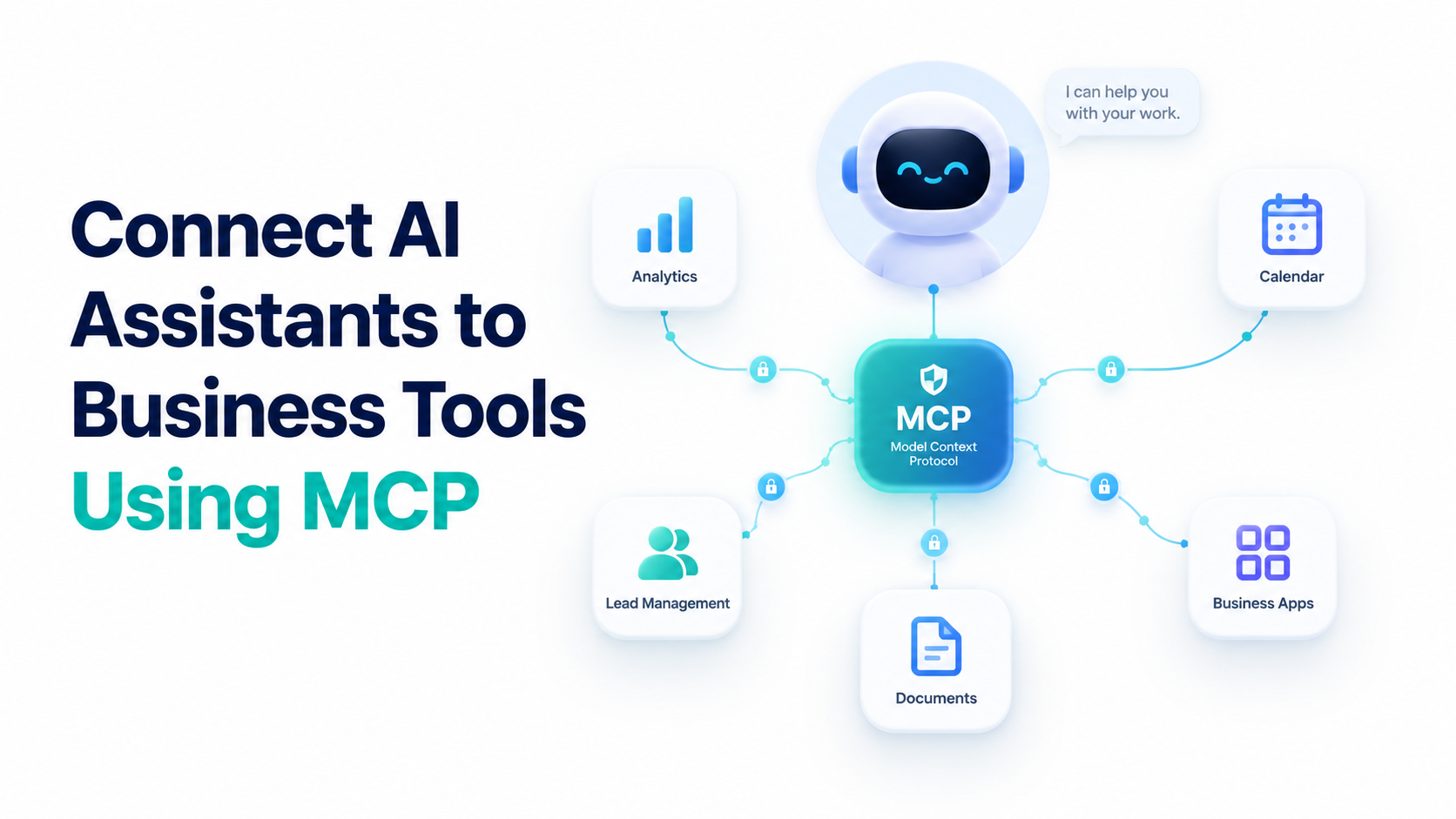
The Model Context Protocol, commonly called MCP, is an open protocol that standardizes how AI applications communicate with external systems.
Think of it as a common connection layer between an AI assistant and the tools it is allowed to use.
Without a standardized protocol, developers may need to create different integration logic for different AI applications. MCP provides a shared structure for exposing tools, resources, and prompts to compatible clients.
For example, a business might have an application that manages website analytics and lead information. If that application exposes suitable capabilities through an MCP server, a compatible AI assistant can discover and use those capabilities when the user requests an appropriate task.
MCP does not automatically connect every application to every AI model. The business application must expose supported capabilities, and the AI client must support the relevant MCP features.
How Does MCP Work?
An MCP integration typically involves three main components.
1. MCP Host
The host is the AI application in which the user interacts with an assistant.
It manages the user experience and coordinates access to connected MCP servers. Depending on the application, it may also manage permissions, conversations, and approval requests.
2. MCP Client
The MCP client manages communication between the host application and a particular MCP server.
It follows the protocol to discover available capabilities, exchange messages, and request tool execution.
3. MCP Server
The MCP server exposes capabilities from a business application or external service.
These capabilities may include tools that perform actions, resources that provide contextual information, or prompts that offer reusable interaction templates.
For example, a business analytics application could expose a tool that retrieves a website report. An authorized assistant could use that tool to obtain the report and explain its results in natural language.
The basic workflow looks like this:
User request → AI assistant → MCP client → MCP server → Business application → Result returned to the assistant.
The assistant then uses the returned information to formulate its response.
Importantly, MCP standardizes the communication layer. It does not replace the business application's underlying APIs, permissions, or security controls.
Why Do Businesses Need MCP Integrations?
Many businesses rely on several separate tools for analytics, customer management, scheduling, reporting, and collaboration.
Employees often need to move between these applications to collect information and complete routine tasks.
MCP can help reduce this friction by making supported application capabilities available to compatible AI assistants.
Here are some practical benefits.
1. Access Business Information Through Natural Language
Instead of navigating multiple dashboards, users may be able to ask questions in everyday language.
For example:
Which landing pages generated the most leads last month?
Summarize the latest performance report for my website.
Show me the information available for a particular business workflow.
The assistant can use connected tools to retrieve relevant information when the integration supports those operations and the user has permission.
2. Reduce Repetitive Manual Work
When connected tools expose appropriate actions, AI assistants can help users complete repetitive tasks.
Depending on the available integrations, these workflows might include retrieving reports, preparing summaries, searching records, or creating supported items in business applications.
Actions that change business data should have appropriate authorization and confirmation requirements.
3. Connect Different AI Assistants to Shared Capabilities
One major advantage of a standard protocol is that compatible AI clients can connect to the same MCP server without requiring an entirely separate integration interface for every client.
However, compatibility is not universal. Each client can differ in its supported transports, authentication methods, tool handling, and administrative policies.
Developers should test their MCP implementation with every AI application they intend to support.
4. Build More Flexible Business Workflows
MCP can serve as a foundation for workflows that combine information from multiple services.
For example, an assistant might retrieve analytics from one connected application, compare it with information from another, and prepare a summary.
Whether it can complete the entire workflow depends on the tools exposed by those applications, the permissions granted, and the AI client's capabilities.
How to Connect AI Assistants to Business Tools Using MCP
The exact setup depends on your AI application and the business tool you want to connect. The following steps describe a typical integration process.
Step 1: Identify the Business Tasks You Want to Support
Start by deciding what the AI assistant should be able to do.
Examples include:
Retrieve analytics reports.
Search customer or lead records.
Access approved business information.
Create calendar events.
Summarize information from connected applications.
Execute approved actions through business APIs.
Keep the initial scope focused. A small integration with clearly defined capabilities is easier to test and secure than an unrestricted connection to an entire business system.
Step 2: Choose or Build an MCP Server
Next, identify whether the business application already provides an MCP server.
If one exists, review its supported tools, documentation, authentication requirements, and permissions.
If it does not, developers may be able to build a server that exposes selected application functionality through MCP.
A typical implementation uses an MCP SDK and connects the server's tools to the business application's existing APIs or internal services.
For example, an analytics application might expose a read-only tool that returns a report for an authorized website.
The server should validate inputs, enforce user permissions, handle API errors, and return structured results.
Step 3: Configure Authentication and Permissions
Before connecting the AI client, determine how it will authenticate with the MCP server.
Depending on the deployment, this may involve OAuth-based authorization, another supported authentication mechanism, or local configuration.
Use the authentication method required by the specific MCP server and client. Do not assume every client supports the same method.
Follow the principle of least privilege: grant access only to the data and actions required for the intended workflow.
For example, an assistant that only needs to summarize website reports should not automatically receive permission to delete records or modify account settings.
Step 4: Add the MCP Connection to a Compatible AI Client
Open the settings or integration interface for your chosen AI application and look for its supported MCP or connector configuration options.
Depending on the client, you may need to provide a server address, configure an authentication flow, install a local server, or use an administrator-managed connection.
For remote servers, the client and server must agree on a supported transport and authentication configuration.
Some applications require an administrator to enable integrations before individual users can access them.
Once the connection is configured, verify that the client can connect successfully and discover the expected tools.
Step 5: Test the Available Tools
After connecting, test the integration using simple, low-risk requests.
For example, if the server exposes a website-report tool, ask the assistant to retrieve a report for a website you are authorized to access.
Check that:
The expected tools are available.
Authentication works correctly.
The returned information is accurate.
Invalid inputs are handled safely.
Unauthorized users cannot access restricted data.
Errors are reported clearly.
Test write operations separately in a controlled environment before allowing them to affect production data.
Step 6: Build a Practical Workflow
Once the connection works reliably, identify a recurring business task that would benefit from the integration.
For example, a marketing team might use an assistant to retrieve approved analytics reports, summarize performance changes, and prepare recommendations for review.
Start with read-only operations, evaluate the results, and add write capabilities only when there is a clear business need and suitable safeguards.
Real-World Use Cases for MCP in Business
MCP is a protocol rather than a complete business automation solution. Its value depends on the capabilities that connected applications expose.
Here are some examples of where MCP-based integrations can be useful.
Website Analytics and Reporting
A connected analytics application may expose tools for retrieving traffic reports, conversion metrics, or page-level performance data.
Users could ask an assistant to summarize those reports, compare periods, or identify areas that deserve further investigation.
The assistant's conclusions should be based on actual retrieved data rather than assumed values.
Lead Management and Customer Operations
A lead management application could expose authorized tools for searching leads, retrieving contact details, or updating supported fields.
This could help teams find information more quickly and prepare follow-up summaries.
Because customer records may contain sensitive information, access should be restricted to authorized users and approved fields.
Scheduling and Calendar Management
A calendar integration may expose capabilities for finding availability or creating supported events.
An assistant could help a user prepare a meeting request or identify suitable time slots.
Creating an event, inviting attendees, or generating a meeting link requires the appropriate integration capabilities and permissions. MCP itself does not provide calendar access automatically.
Research and Business Comparisons
If connected applications expose the required data, an assistant may be able to gather information from multiple sources and prepare a comparison.
For example, it might compare marketing performance across campaigns or summarize selected business records.
The reliability of the result depends on the quality, freshness, and consistency of the underlying data.
Marketing Workflow Support
Marketing tools could expose capabilities for retrieving campaign metrics, reviewing scheduled content, or preparing reports.
An assistant could then help organize information and draft recommendations.
Publishing content, changing campaign settings, or sending messages should remain subject to the relevant permissions and review processes.
MCP Security Best Practices
Connecting AI assistants to business tools introduces important security considerations.
An integration that makes useful information available to an assistant may also expose sensitive data or powerful actions if it is configured incorrectly.
Use the following practices when building or deploying MCP integrations.
Use Least-Privilege Access
Grant only the permissions required for the task.
Separate read-only capabilities from tools that create, update, or delete data. Restrict access to specific accounts, projects, or records whenever possible.
Protect Credentials and Tokens
Never expose API keys, access tokens, or client secrets in public repositories, user-facing prompts, or unsecured configuration files.
Use appropriate secret storage and follow the authentication guidance for your deployment.
Validate Tool Inputs
MCP servers should validate all incoming arguments and enforce business rules on the server side.
Do not rely on the AI assistant to prevent invalid requests or unauthorized operations.
Require Confirmation for Sensitive Actions
For actions with meaningful consequences, such as deleting records, sending messages, changing permissions, or making external commitments, use explicit authorization and confirmation controls where appropriate.
The exact safeguards should reflect the risk of each action.
Treat External Content as Untrusted
Information returned from websites, documents, emails, or other external systems may contain misleading instructions or malicious content.
An MCP server and its host application should be designed to prevent untrusted content from overriding security policies or gaining unauthorized access to other tools.
Monitor and Audit Activity
Maintain suitable logs for authentication, tool calls, errors, and sensitive operations while avoiding unnecessary storage of confidential information.
Regularly review permissions, update dependencies, and test the integration when the server or client changes.
Common MCP Integration Challenges
Although MCP can simplify the connection between AI applications and business tools, it does not eliminate every integration challenge.
Client compatibility: Different AI clients may support different MCP features, transports, and authentication flows.
Authentication complexity: OAuth setup, token handling, account permissions, and organizational policies may require additional configuration.
Unreliable source data: An assistant cannot provide a dependable answer when the connected application returns incomplete, stale, or incorrect information.
Tool selection errors: An AI model may choose an unsuitable tool or supply incorrect arguments. Server-side validation remains essential.
Permission boundaries: Access granted to the MCP server must align with the current user's authorization and the intended business task.
Operational maintenance: Integrations require monitoring, version management, testing, and updates as business APIs and AI clients evolve.
Planning for these challenges early can make an MCP deployment more reliable and easier to maintain.
How Quantalog Uses MCP to Connect AI Assistants
Quantalog is expanding the ways users can work with their business information and connected tools.
Through its MCP integration, Quantalog supports connections with compatible AI assistants, including ChatGPT and Claude, subject to each client's current capabilities and configuration.
This approach allows supported Quantalog functionality to be accessed through an AI interface rather than requiring every task to begin in the application's own dashboard.
For example, depending on the tools enabled for the connection, users may be able to ask an assistant to retrieve relevant information or help with supported workflows.
The exact operations available depend on the tools exposed by Quantalog, the permissions granted, and the AI client being used.
To learn more about connecting supported assistants, visit the Quantalog AI Assistants documentation.
As AI integrations continue to develop, protocols such as MCP can help businesses make their existing applications more accessible while retaining control over permissions and operations.
Conclusion
Connecting AI assistants to business tools is an important step toward making AI more useful in everyday work.
The Model Context Protocol provides a standardized way for compatible AI applications to discover and interact with capabilities exposed by external services.
By choosing the right tools, configuring authentication, validating permissions, and testing workflows carefully, businesses can use MCP to make information easier to access and supported tasks easier to complete.
The best place to start is with one clear business problem. Connect a suitable tool, test it with low-risk requests, measure whether it improves the workflow, and expand gradually as your requirements grow.
If you're exploring ways to make your business information and workflows accessible through AI, discover how Quantalog connects with compatible AI assistants through MCP.
Frequently Asked Questions
What does MCP stand for in AI?
MCP stands for Model Context Protocol. It is an open protocol that standardizes communication between AI applications and external tools, resources, and services.
Do I need an MCP server to connect business tools to an AI assistant?
For an MCP-based connection, the business application must expose an MCP server or use an integration layer that provides MCP-compatible capabilities. Some AI applications also support other integration methods, such as native connectors or direct API integrations.
Can MCP connect ChatGPT and Claude to the same business application?
Potentially, yes. If both AI applications support the relevant MCP connection method and the business application exposes compatible capabilities, they can connect to the same MCP server. Their setup requirements and available features may differ.
Is MCP the same as an API?
No. An API defines how software accesses a service, while MCP standardizes how compatible AI applications discover and interact with tools and other capabilities. An MCP server may use an existing API behind the scenes.
Is MCP secure for business use?
MCP can be used in business environments, but security depends on the implementation, authentication, authorization, deployment, and safeguards. Use least-privilege permissions, validate inputs, protect credentials, and monitor sensitive operations.
Can MCP automate business workflows?
MCP can expose tools that an AI assistant uses to support workflows. The degree of automation depends on the available tools, the client's capabilities, business permissions, and any required human approvals.
Does MCP work with every AI assistant?
No. The AI application must support MCP or use a compatible integration layer. Support for particular transports, authentication mechanisms, and tool features varies by client.
What is the difference between an MCP client and an MCP server?
An MCP client communicates with an MCP server on behalf of an AI application. The server exposes tools, resources, or prompts that the client can discover and use according to the connection's permissions.